NetScaler Compression

Font: https://www.jgspiers.com/

NetScaler can perform compression on data to reduce the size of the data in transit without any loss to that data. Compression advantages include reduced bandwidth, reduced stress on backend web servers and the quicker serving of content to users.

The compression feature can be enabled via GUI or using CLI command enable ns feature cmp. Compression is available under Enterprise and Platinum licenses.

Compression can be enabled for HTTP and SSL services only.

Data that is compressible:

  • HTML, XML, CSS.
  • Microsoft Word, Excel, PowerPoint.
  • Plain or rich text documents.

Quantum size: The minimum size an object must be to be compressed (default 56 KB). This setting exists to prevent the NetScaler wasting resources compressing content that is already very small to begin with.

Change Quantum size: Navigate to Optimization -> HTTP Compression -> Change compression settings -> Quantum size.

Note: Other settings such as the compression level can be configured by navigating to Optimization -> HTTP Compression -> Change compression settings -> Quantum size:

  • Optimal – Corresponds to a GZIP level of 5-7. (default option).
  • Best Speed – Corresponds to a GZIP level of 1.
  • Best Compression – Corresponds to a GZIP level of 9.
1-min

Note: The better the compression, the more CPU that will be consumed on NetScaler. Plan carefully when using compression, especially if you have a lot of services.

Another setting named Bypass Compression On CPU Usage prevents compression from running if the NetScaler reaches a certain CPU percent level. This by default is set as 100%.

Compression can be enabled at a global level or against individual services.

Enable compression globally: Navigate to System -> Settings -> Configure Basic Features -> HTTP Compression. At this stage some default compression policies that have already been created will be used globally to compress data.

2-min

Enable compression per service: Enable the compression feature as above then navigate to Traffic Management -> Virtual Servers and Services -> Services -> edit existing service -> tick Compression under Settings.

3-min

Note: If you have configured services before enabling compression globally then you must enable compression individually on each service. Future created services will have compression enabled by default.

Compression Policies contain actions which dictate if compression applies or not and if so using which compression algorithm. Policies can be applied globally or to a vServer.

Compression Actions:

  • COMPRESS – Compresses data using GZIP or DEFLATE algorithm (depending on which algorithm the web browser supports).
  • NOCOMPRESS – Does not compress data.
  • GZIP – Uses the GZIP algorithm to compress data on browsers that support this algorithm.
  • DEFLATE – Uses the DEFLATE algorithm to compress data on browsers that support this algorithm.

To configure a policy, navigate to Optimization -> HTTP Compression -> Policies -> Add.

4-min

A number of built-in policies already exist which can be viewed by clicking on the Show built-in Compression Policies link. These policies are activated globally when you enable compression.

5-min

Some policies include:

  • ns_nocmp_xml_ie – Data of type XML and text is not compressed when the browser connecting is IE.
  • ns_cmp_msapp – Files of type Microsoft Word, Excel and PowerPoint are compressed.
  • ns_cmp_content_type – When the response contains text data, this policy is used to compress.
6-min

Now create a policy with the Response Action as COMPRESS and an expression that specifies the User Agent contains Mozilla//5.0 as shown below. Note that to create this policy I am using the default syntax. This is recommended as policies created with a default syntax can perform deeper analysis of the data. If you have a reason to use a Classic Syntax, click Switch to Classic Syntax.

7-min

To find out what user agent your browser uses, there are websites out there such as https://msdn.microsoft.com/en-gb/library/ms537503(v=vs.85).aspx.

8-min

You can also use the Saved Policy Expressions such as ns_msie for Internet Explorer.

Next bind the policy so a vServer by navigating to Traffic Management -> Virtual Servers. Click on the desired vServer and select Edit.

9-min

Under Policies click Add.

10-min

Under Choose Policy select Compression and under Choose Type select Request. Click Continue.

11-min

Under Select Policy click Click to select.

12-min

Choose the policy we just created and click Select.

13-min

Click Bind.

14-min

Click Done.

15-min

Save the running configuration.

16-min

Now using your web browser visit the web page that is served through the Load Balanced vServer. This vServer will be the one we enabled the compression policy against.

17-min
18-min

Now on the Dashboard pane on your NetScaler, using the dropdown select Compression Policy. We can see that the ns_adv_cmp_mozilla_50 policy has received hits.

19-min

Next switch to Compression. You can see some compression statistics.

20-min

Then back over in Optimization -> HTTP Compression -> Policies the created policy also shows compression statistics.

Another example is compression of the Director website using NetScaler. Here I am using HTTP Fox, an add-on that allows me to view the GET requests and responses between my web browser and the Director server. Keep an eye on the received bytes column. Also notice that my browser is sending Accept-Encoding gzip, deflate as supported compression methods. The server is not returning anything compressed as the response headers do not contain any Content-Encoding flags.

Now with compression enabled on the NetScaler, the received bytes are reduced. Also notice the Content-Encoding gzip field within one of the response headers. This proves the NetScaler is using GZIP to compress the data.Using CLI and stat cmp shows come compression statistics including a 2.82 HTTP compression ratio.
Tags: citrixcompressionhttpnetscaler

How to Configure LDAP Authentication on NetScaler Appliance for Management Purposes

Objective

This article describes how to configure user logon to the NetScaler appliance using Active Directory credentials (username and password) for management purposes (superuser, read-only, network privileges and all others).

Requirements

  • Windows Active Directory domain controller servers
  • A dedicated domain group for NetScaler administrators
  • NetScaler Gateway 10.1 or later

Instructions

Overview diagram of configuring LDAP Authentication on the NetScaler

User-added image

Adding new administrators on the NetScaler

User-added image

NetScaler GUI

  1. Creating LDAP Server
  2. Creating LDAP Policy
  3. Binding LDAP Policy
  4. Assign privileges to your administrators
    1. Scenario A. Applying Privileges on Group
    2. Scenario B. Applying Privileges Individually for Each User

To configure user logon on a NetScaler appliance (for Management purposes) complete the following tasks:

1. Creating LDAP Server

Add an Authentication Server from System > Authentication > LDAP > Server tab and complete the required fields as shown in the example screenshot anc click Create.

LDAP Server configuration

In this example, we limit the access to the NetScaler by filtering the authentication on the user group membership by setting Search Filter. Value used for this example is – &(memberof=CN=NSG_Admin,OU=AdminGroups,DC=Citrix,DC=lab)

As search filter is configured, everyone who are not member of NSG_Admin group will not be able to log on to the NetScaler Management interface. Back to top

2. Creating LDAP Policy

Add an Authentication policy from System > Authentication > LDAP > Policies tab. Enter a name for the policy, select the server that you created in Step 1 from the drop-down menu and in the Expression text field, type ns_true and click Create:

LDAP Policy configuration.

Back to top

3. Binding LDAP Policy

Go to Global Bindings Add Binding Click to Select field and choose the newly created policy (in this example, pol_LDAPmgmt). Choose a priority accordingly (the lower the number, the higher the priority), click on Bind and then Done. A green checkmark will show under Globally Bound:

LDAP authentication policy globally bound

Back to top

4. Assign privileges to your administrators

You can choose between two options :

  • Adding a new group under NetScaler and assigning the same access rights for every user who are members of this group.
  • Creating each user administrator account and assign for each of them the correct rights.

Back to top

Scenario A. Applying Privileges on Group

In this scenario, users who are member of you Active Directory group configured in the search filter (in this example, NSG_Admin) will be able to connect to the NetScaler Management interface and will have superuser command policy.

Add a new system group to the NetScaler, under System > User Administration > Groups.This will define the Active Directory group that the users are members of and the Command Policy level that should be associated to the account when logging in. Then, click Create.
Note: The Group Name has to match the Active Directory record exactly.

System Administrators Group

Adding New Administrators

Just add the new administrator users to the LDAP group you configured on the search filter in Step 1.

Back to top

Scenario B. Applying Privileges Individually for Each User

In this scenario, users who are member of your Active Directory group configured in the search filter (in this example, NSG_Admin) will be able to connect to the NetScaler Management interface but will not have any privileges until you create the specific user on NetScaler and bind command policy to it. This scenario allow you to leverage the administrative right per users.

Add a new system user to the NetScaler, under System > User Administration > Users.This will define the Active Directory user and the Command Policy level that should be associated to the account when logging in. Be sure Enable External Authentication is checked. Then, click Continue
Notes: The username has to match the existing user Active Directory record exactly.
When you add a user to NetScaler for external authentication, you need to provide a password in case of the external authentication would not be available. For the external authentication to work properly, the internal password must not match the user account LDAP password.

User creation 1-2

Under Bindings, click on System Command Policy. Depending on your needs, choose the right Command Policy to apply to your user. Bind the desired command policy and click Close and then Done.

Command policy binding

Adding New Administrators

Add the new administrator users to the LDAP group you configured on the search filter in Step 1.
Create the new system user in NetScaler and assign the correct command policy.

Back to top

NetScaler CLI

Use the following commands as a guide to configure logon for a group with Superuser privileges on the NetScaler appliance CLI:

# 1. Creating LDAP Server
add authentication ldapAction LDAP_mgmt -serverIP myAD.citrix.lab -serverPort 636 -ldapBase "DC=citrix,DC=lab" -ldapBindDn readonly@citrix.lab -ldapBindDnPassword -ldapLoginName sAMAccountName -searchFilter "&(memberof=CN=NSG_Admin,OU=AdminGroups,DC=citrix,DC=lab)" -groupAttrName memberOf

# 2. Creating LDAP Policy
add authentication ldapPolicy pol_LDAPmgmt ns_true LDAP_mgmt

# 3. Binding LDAP Policy 
bind system global pol_LDAPmgmt -priority 110

# 4. Assign privileges to your administrators
### Scenario A. Applying privileges on the group
add system group NSG_Admin
bind system group NSG_Admin -policyName superuser 100

### Scenario B. Applying the privileges individually for each users
add system user admyoa
bind system user admyoa superuser 100

Forcing a node to fail over

You might want to force a failover if, for example, you need to replace or upgrade the primary node. You can force failover from either the primary or the secondary node. A forced failover is not propagated or synchronized. To view the synchronization status after a forced failover, you can view the status of the node.

A forced failover fails in any of the following circumstances:

  • You force failover on a standalone system.
  • The secondary node is disabled.
  • The secondary node is configured to remain secondary.

The NetScaler appliance displays a warning message if it detects a potential issue when you run the force failover command. The message includes the information that triggered the warning, and requests confirmation before proceeding.

You can force a failover on a primary node, secondary node, and when nodes are in listen mode.

  • Forcing Failover on the Primary Node. If you force failover on the primary node, the primary becomes the secondary and the secondary becomes the primary. Forced failover is possible only when the primary node can determine that the secondary node is UP. If the secondary node is DOWN, the force failover command returns the following error message: “Operation not possible due to invalid peer state. Rectify and retry.” If the secondary system is in the claiming state or inactive, it returns the following error message: “Operation not possible now. Please wait for system to stabilize before retrying.”
  • Forcing Failover on the Secondary Node. If you run the force failover command from the secondary node, the secondary node becomes primary and the primary node becomes secondary. A force failover can occur only if the secondary node’s health is good and it is not configured to stay secondary. If the secondary node cannot become the primary node, or if secondary node was configured to stay secondary (using the STAYSECONDARY option), the node displays the following error message: “Operation not possible as my state is invalid. View the node for more information.”
  • Forcing Failover When Nodes Are in Listen Mode. When the two nodes of an HA pair are running different versions of the system software, the node running the higher version switches to the listen mode. In this mode, neither command propagation nor synchronization works. Before upgrading the system software on both nodes, you should test the new version on one of the nodes. To do this, you need to force a failover on the system that has already been upgraded. The upgraded system then takes over as the primary node, but neither command propagation or synchronization occurs. Also, all connections need to be re-established.

To force failover on a node by using the command line interface

At the command prompt, type:

force HA failover

To force failover on a node by using the GUI

Navigate to System > High Availability and, on the Nodes tab, select the node, in the Action list, select Force Failover.

Operations for HTTP, HTML, and XML encoding and “safe” characters

The following operations work with the encoding of HTML data in a request or response and XML data in a POST body.

  • <text>.HTML_XML_SAFE: Transforms special characters into XML safe format, as in the following examples: A left-pointing angle bracket (<) is converted to < A right-pointing angle bracket (>) is converted to > An ampersand (&) is converted to & This operation safeguards against cross-site scripting attacks. Maximum length of the transformed text is 2048 bytes. This is a read-only operation. After applying the transformation, additional operators that you specify in the expression are applied to the selected text. Following is an example: http.req.url.query.html_xml_safe. contains(“myQueryString”)
  • <text>.HTTP_HEADER_SAFE: Converts all new line (‘\n’) characters in the input text to ‘%0A’ to enable the input to be used safely in HTTP headers. This operation safeguards against response-splitting attacks. The maximum length of the transformed text is 2048 bytes. This is a read-only operation.
  • <text>.HTTP_URL_SAFE: Converts unsafe URL characters to ‘%xx’ values, where “xx” is a hex-based representation of the input character. For example, the ampersand (&) is represented as %26 in URL-safe encoding. The maximum length of the transformed text is 2048 bytes. This is a read-only operation. Following are URL safe characters. All others are unsafe:
    • Alpha-numeric characters: a-z, A-Z, 0-9
    • Asterix: “*”
    • Ampersand: “&”
    • At-sign: “@”
    • Colon: “:”
    • Comma: “,”
    • Dollar: “$”
    • Dot: “.”
    • Equals: “=”
    • Exclamation mark: “!”
    • Hyphen: “-“
    • Open and close parentheses: “(“, “)”
    • Percent: “%”
    • Plus: “+”
    • Semicolon: “;”
    • Single quote: “’”
    • Slash: “/”
    • Question mark: “?”
    • Tilde: “~”
    • Underscore: “_”
  • <text>.MARK_SAFE: Marks the text as safe without applying any type of data transformation.
  • **<text>.SET_TEXT_MODE(URLENCODED|NOURLENCODED) Transforms all %HH encoding in the byte stream. This operation works with characters (not bytes). By default, a single byte represents a character in ASCII encoding. However, if you specify URLENCODED mode, three bytes can represent a character. In the following example, a PREFIX(3) operation selects the first 3 characters in a target. http.req.url.hostname.prefix(3) In the following example, the NetScaler can select up to 9 bytes from the target: http.req.url.hostname.set_text_mode(urlencoded).prefix(3)
  • <text>.SET_TEXT_MODE(PLUS_AS_SPACE|NO_PLUS_AS_SPACE): Specifies how to treat the plus character (+). The PLUS_AS_SPACE option replaces a plus character with white space. For example, the text “hello+world” becomes “hello world.” The NO_PLUS_AS_SPACE option leaves plus characters as they are.
  • <text>.SET_TEXT_MODE(BACKSLASH_ENCODED|NO_BACKSLASH_ENCODED): Specifies whether or not backslash decoding is performed on the text object represented by <text>. If BACKSLASH_ENCODED is specified, the SET_TEXT_MODE operator performs the following operations on the text object:
    • All occurrences of “\XXX” will be replaced with the character “Y” (where XXX represents a number in the octal system and Y represents the ASCII equivalent of XXX). The valid range of octal values for this type of encoding is 0 to 377. For example, the encoded text “http\72//” and http\072//” will both be decoded to http://, where the colon (:) is the ASCII equivalent of the octal value “72”.
    • All occurrences of “\xHH” will be replaced with the character “Y” (HH represents a number in the hexadecimal system and Y denotes the ASCII equivalent of HH. For example, the encoded text “http\x3a//” will be decoded to http://, where the colon (:) is the ASCII equivalent of the hexadecimal value “3a“.
    • All occurrences of “\uWWXX” will be replaced with the character sequence “YZ” (Where WW and XX represent two distinct hexadecimal values and Y and Z represent their ASCII equivalents of WW and XX respectively. For example, the encoded text “http%u3a2f/” and “http%u003a//” will both be decoded to http://, where “3a” and “2f” are two hexadecimal values and the colon (:) and forward slash (“/”) represent their ASCII equivalents respectively.
    • All occurrences of “\b”, “\n”, “\t”, “\f”, and “\r” are replaced with the corresponding ASCII characters. If NO_BACKSLASH_ENCODED is specified, backslash decoding is not performed on the text object.
  • <text>.SET_TEXT_MODE(BAD_ENCODE_RAISE_UNDEF|NO_BAD_ENCODE_RAISE_UNDEF): Performs the associated undefined action if either the URLENCODED or the BACKSLASH_ENCODED mode is set and bad encoding corresponding to the specified encoding mode is encountered in the text object represented by <text>. If NO_BAD_ENCODE_RAISE_UNDEF is specified, the associated undefined action will not be performed when bad encoding is encountered in the text object represented by<text>.

Font: https://docs.citrix.com/

La política de reescriptura per convertir els enllaços HTTP a HTTPS no funciona a NetScaler

Símptomes o error

La política de reescriptura per convertir enllaços HTTP a HTTPS no funciona.

A continuació es mostra un exemple d’acció:
afegiu l’acció de reescriure test_action replace_all «http.RES.BODY (2500)» «\» https: // \ «» -pattern http: //


Solució

Seguiu els passos següents per resoldre aquest problema:

  1. Suprimeix l’encapçalament d’Acceptació de Codificació afegint una acció de reescriptura i una política:
    afegeix una acció de reescriptura delete1 delete_http_header “Accept-Encoding” -bypassSafetyCheck YES
    add test de política de reescriptura HTTP.REQ.IS_VALID delete1
  2. Lliga-la globalment o a nivell de servidor virtual.

Una política de reescriptura garanteix que s’elimina l’encapçalament de codificació d’acceptació per a totes les sol·licituds que compleixin els criteris específics.


Problema Causa

L’anàlisi de traça va revelar que el servidor del darrere enviava respostes comprimides. El NetScaler no pot reescriure si hi ha respostes comprimides del servidor final.


Recursos addicionals

Metodologia de resolució de problemes

  1. L’anàlisi de traça va revelar que el servidor del darrere enviava respostes comprimides. El NetScaler no pot reescriure si hi ha respostes comprimides del servidor final.
  2. Per a respostes comprimides, la solució és desactivar la compressió a la part posterior i activar-la al NetScaler. La compressió es pot desactivar a la part posterior assegurant-se que l’encapçalament d’Acceptació de codificació no s’envia al servidor final quan es reenvia la sol·licitud al NetScaler. Tot i això, desactivar el paràmetre servercmp no va solucionar el problema:
  3. Per impedir que el servidor del darrere enviï respostes comprimides, es recomana suprimir l’encapçalament Accept-Encoding desactivant el paràmetre servercmp.
    estableix el paràmetre cmp -serverCmp OFF
  4. Tot i desactivar el paràmetre servercmp, hi va haver respostes comprimides del servidor final i la reescriptura no funciona. En els rastres, s’observa que la capçalera Accept-Coding encara va al final, perquè encara es rebia la capçalera Content-Encoding: gzip a les respostes des de la part posterior. El motiu pel qual el paràmetre serverCmp no funcionava és perquè la compressió no estava habilitada en aquests serveis. L’única vegada que s’inicia el paràmetre servercmp és si la compressió està activa en aquest servei concret i NetScaler creu que pot comprimir l’objecte, llavors elimina l’encapçalament de codificació d’acceptació. Així doncs, fins i tot per a les polítiques de compressió per defecte, no suprimim l’encapçalament d’acceptació de codificació encara que la compressió estigui habilitada al servei.
  5. Una política de reescriptura per eliminar la capçalera de codificació d’acceptació és una millor solució que desactivar el paràmetre servercmp perquè encara hi ha altres situacions en què NetScaler no elimina l’encapçalament de codificació d’acceptació, fins i tot si la compressió està habilitada.

Customizing a website using NetScaler rewrite policies

In one of my previous posts I installed badstore.net on my XenServer. This was not that easy, i solved all problems, however the results had not been so very good. There are 2 reasons for this:

  1. Badshop uses a java script to forward users to http://www.badshop.net/cgi-bin/badstore.cgi. So it will forward all your requests to an external website, even if you host it on your own environment.
  2. some of the hyperlinks on the web page are no relative links but link to http://www.badstore.net/something.cgi
  3. some of these hyperlinks forward to an ssl- url.

As I had to fix this using my NetScaler as badstore boots from a CD image.

So let’s start with number 1:

Ok. We have rewriting policies on a NetScaler, and we may use NetScaler  rewriting policies to change content on a website. Unfortunately I could not really understand edocs about search and replace on websites. There are some blog articles about customizing NetScaler logon page, however they also had been of hardly any use to me. In the end I found a page describing rewriting for NetScaler 8.x, but I use NetScaler 10.5. The page was not completely right and very outdated, but it helped me finding my way.

The NetScaler rewrite action:

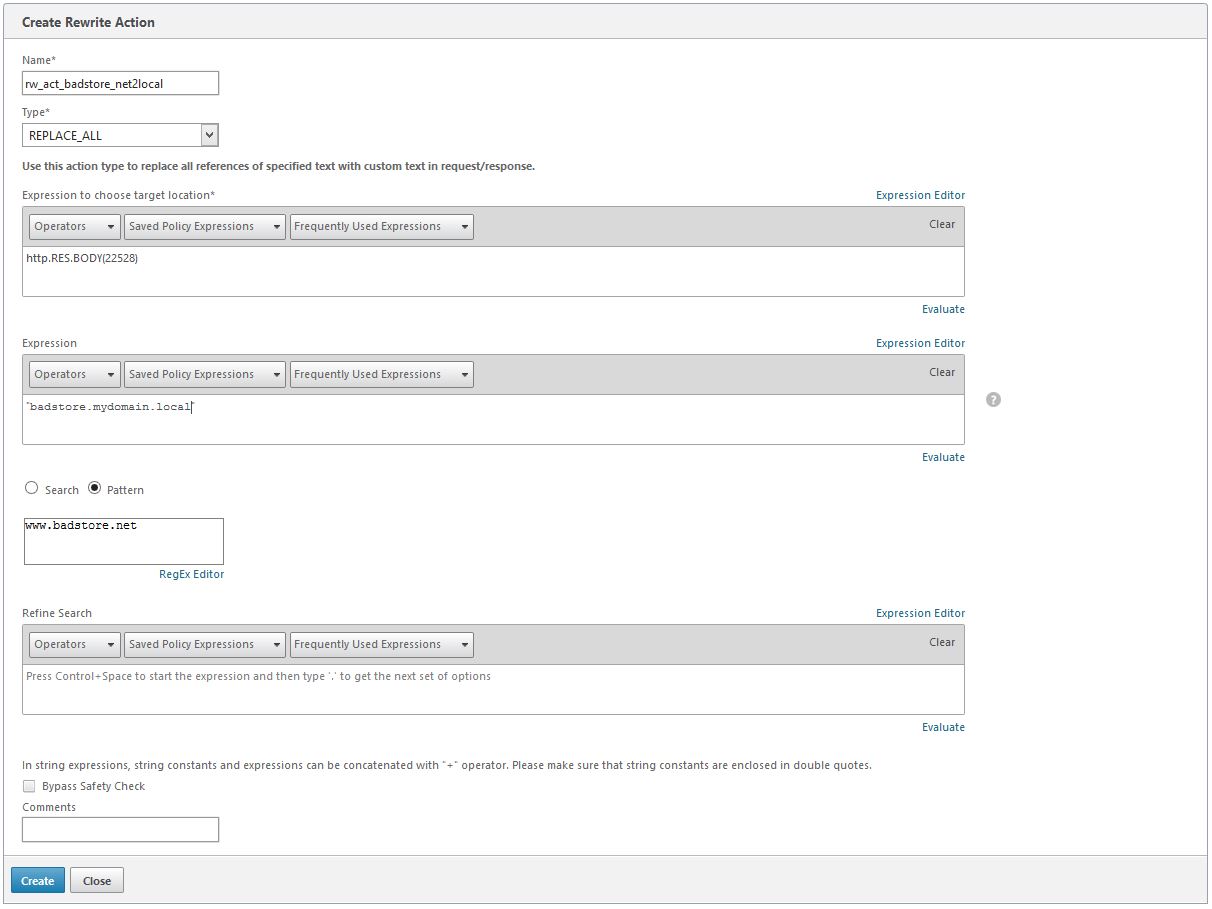
add rewrite action rw_act_badstore_net2local replace_all "HTTP.RES.BODY(22528)" "\"badstore.mydomain.local\"" -pattern www.badstore.net

This is what it would look like if I’d rather used the GUI of 10.5:

rw_action


so what does this mean?

  • The type of rewrite action is replace_all. We want to replace all http://www.badstore.net with our internal url badstore.mydomain.local!
  • Where do we replace? In the first 22528 byte of the server response’s http response (but no header fields): http.res.body(22528)
    The number should be as small as any possible if you host big pages to avoid unnecessary load on our NetScaler. I did not give it a try: this is just 22 kBt, so a near to unlimited size *lol*
    Following Curtis’s suggestion: HTTP.RES.BODY(HTTP.RES.CONTENT_LENGTH) would be all of the body, dynamically adapted.
  • which text should get replaced? www.badstore.net. That’s the pattern we’re searching for!
  • which text should be there instead? badstore.mydomain.local
    To be understood by the processing engine this string has to be in quotes, however the string itself has to be quoted too. So we add quotes, but we need to add a second set of quotes. ""badstore.intern.mydomain.local"" would not do the trick as "" would be both, the beginning and the end of quotes. So we have to mask the 2nd set. That’s what \" does. Did you understand? I’m so sorry. No matter if you understand or not: use it the way I did, it worked for me and it will work for you too!

The NetScaler rewrite policy

add rewrite policy rw_pol_badstore_net2local true rw_act_badstore_net2local

This adds a NetScaler rewriting policy. The filter is true, so all responses get rewritten. Be careful on this as it may be a waste of ressources! The policy action is the rw_act_badstore_net2local action described above.

bind lb vserver badstore.mydomain.local -policyName rw_pol_badstore_net2local -priority 100 -gotoPriorityExpression NEXT -type RESPONSE

  • This will bind this very policy (rw_pol_badstore_net2local) to my vserver badstore.mydomain.local. Never bind a policy like that globally as it will process all responses of all servers. This may lead to unwanted behaviour, i.e. this blog would not work as the blog is hosted behind this very NetScaler! It is also a waste of resources as the string has not to be exchanged on any other website hosted behind this NetScaler!
  • The priority of this Policy will be 100, and we will also process the next policy. This was nescesary as we will have to fix this https problem (problem number 3).
  • And last, not least: This is a response policy. It will never affect requests.

What did this do?

It solved problem 1 and also problem 2!

All hyperlinks, but also our java script now points to badstore.mydomain.local. Even the SSL hyperlink mentioned in problem 3 points to the right domain!

NetScalers are rather cool, don’t you think?

Problem number 3

You may have guessed: there is no more problem about that. We create a 2nd replace policy and replace https with http. I don’t screen shot this policy as it is very similar to the first one, however I add the command here.

add rewrite action rw_act_badstore_https2http replace_all "http.RES.BODY(22048)" "\"http://\"" -pattern "https://"

Mixed Content

Citrix NetScaler is one of the most advanced and impressive products that I used throughout the past 5 years. Started with the configuration of the NetScaler Access Gateway, and ended up with all the advanced features, such as URL Rewrite, Content Switching (CSW), Global Server Load Balancing (GSLB) and URL transformations.

(I’m also advice you to take a look at GSLB, I’ll already covered this feature earlier in a CUCG User Share Webinar, together with Fellow NSIG leaders Dave Brett and Carsten Bruns).

When u setup the following scenario… SSL Offloading and the Web Application and / or service requires the transformation of the internal HTTP Protocol to a Secure HTTPS connection on the outside and experience problems with the URL transformation. For example, the application doesn’t show the right redirections, and it still places http:// in front of some of the links. To solve this problem, you’ll need to active Rewrite Actions, which will translate all the SSL Offloading HTTPS requests back to HTTP in the header. At this moment, the Web Application will know his way and will proceed working properly.

In this article, I’ll show you how you can configure URL Rewrite / Responder Policies to make sure that your Web Application continues working after activating SSL Offloading, when the back-end is listening on the HTTP Protocol.

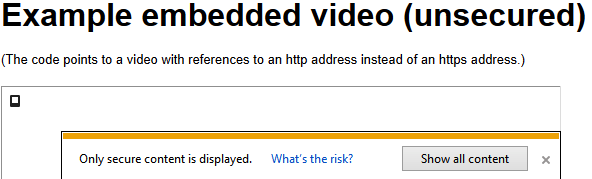
Errors without URL Rewrite activated

The following error can return, when u activated SSL Offloading without using URL Rewrite policies…

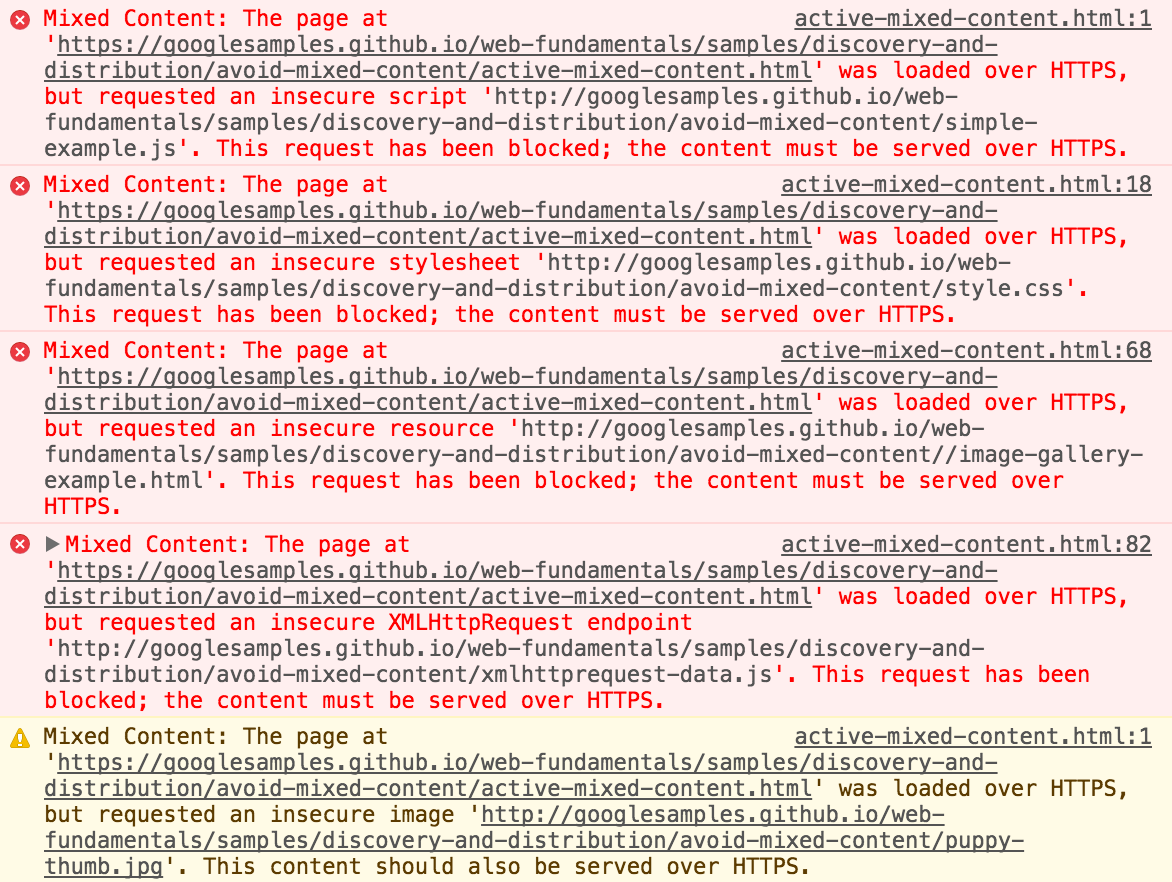
And the following errors can return in the Developer Tools…

Solve this Mixed Content error by proceeding the steps below.

URL Rewrite configuration steps

Perform the following steps to use the rewrite feature to replace occurrences of http:// with https:// in the body of an HTTP response. At this way, the protocol transformation steps will be translated

Step 1: Create a Rewrite Action through the following command add rewrite action httpRewriteAction replace_all http.res.body(50000) «\»https://\»» -pattern http://

1 add rewrite action httpRewriteAction replace_all http.res.body(50000) «\»https://\»» -pattern http://

Step 2: Aanmaken van rewrite policy add rewrite policy httpRewritePolicy «http.res.body(50000).contains(\»http://\»)» httpRewriteAction

1 add rewrite policy httpRewritePolicy «http.res.body(50000).contains(\»http://\»)» httpRewriteAction

Step 3: Bind the new Rewrite policy to the Virtual Server of the Web Application Server – as Response Rewrite Policy.

NetScaler : Add a maintenance page for a website

A common request from customers during Citrix Netscaler reverse proxy and load balancing implementations is to show the visitors of a website a user friendly maintenance or error page when the website is offline or manually put in maintenance mode.  This can off course be handled by the application itself, but with the Netscaler appliances it is also possible to show a maintenance page hosted on the Netscaler itself. This can be used as a fallback regardless of the backend application.

This blog post will show one of the methods how this can be achieved.  In this method, we will use a dummy load balancing virtual server that is always responding with a maintenance page. The maintenance page itself is located on the Netscaler so no separate web server is required.

  1. Create a dummy Load Balancing service. The service can point to e.g. 1.1.1.1. The service will in reality never be used. The reason we need the dummy service is to make sure we have a dummy load balancing virtual server that is always UP. To make sure the Netscaler detects the service as UP, edit the service and disable health monitoring.
  2. Create dummy Load Balancing Virtual Server. This virtual server does not need an IP Address assigned, so choose “Non Addresssable”.
  3. Bind the dummy service to the dummy LB Virtual Server.
  4. Create a responder action (AppExpert > Responder > Actions ).
  5. Responder action type= “Respond with HTML Page”. HTML Page = Create from Text/Html. (See below for examples)
  6. Create a responder policy with expression “true” and the just created action linked.
  7. Edit the dummy load balancing virtual server and assign the responder policy.

Now for every ‘normal’ load balancing virtual server that is used by clients, the dummy load balancing virtual server can be assigned as the backup virtual server (using the ‘protection’ settings).  As soon as all backend services are offline or the LB VS is disabled manually on the Netscaler, the netscaler will respond with the configured HTML page.

Here are some example HTML pages that can be fully customized to your liking. To simplify hosting the HTML pages on the Netscaler the images are embedded in the HTML code using Base 64 encoding.  The examples can be saved as .HTML file, edited and uploaded to the NS.

Example 1 : Download Link (txt format)

Example 2 : Download Link (txt format)

Example 3 : Download Link (txt format)

Rewrites

set transform action rewrite1 -priority 10 -reqUrlFrom «https://abc.companyname.com/test/(.)» -reqUrlInto «https://hostname.internaldomain.com/$1» -resUrlFrom «https://hostname.internaldomain.com/(.)» -resUrlInto «https://abc.companyname.com/test/$1»

IF you’re original URL patterns are like, the (.*) captures the following in red:

https://abc.companyname.com/test/ << (In this case nothing is matched, which is fine)
https://abc.companyname.com/test/somepage.asp
https://abc.companyname.com/test/somedir/somepage.asp?a1=b1&a2=b2

When you transform into the backend pattern (request Into):

https://hostname.internaldomain.com/ << (nothing appended)
https://hostname.internaldomain.com/somepage.asp
https://hostname.internaldomain.com/somedir/somepage.asp?a1=b1&a2=b2